ACC Client: Some options will be disabled until all servers are upgraded
ACC Client says “Some options will be disabled until all servers are upgraded”? It’s holding stale site details. Reset its settings to fix it.
Close the ACC Client, rename the Client folder to Client.old in %ProgramData%, %AppData% and %LocalAppData%\Avigilon, then open it again.
The steps and the reason are below.
What you see in Site Setup
The moment you enter Site Setup in the ACC Client to apply licence upgrades, this message appears at the top centre of the screen:
“Some options will be disabled until all servers are upgraded”
The License Management button is missing, along with a host of others.
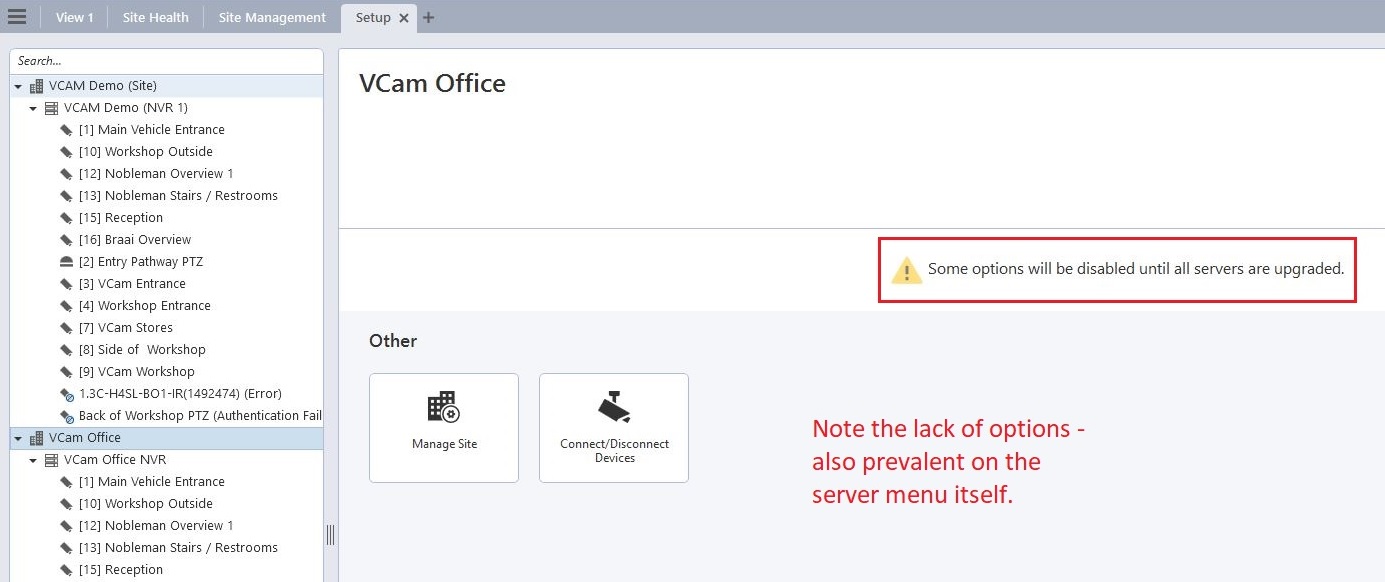
On a one-server, one-site system this is curious: there’s only one server, and its version matches the client’s.
Why it happens: a server that isn’t there
The message shows up after a one-site, one-server ACC system is upgraded, or several servers in a site cluster, particularly between major versions: in the case below, from ACC 6.14.16.2 to ACC 7.6.2.2. The exact reason isn’t known yet.
This is the sequence that led to it:
- ACC 6.14.6.30 upgraded to ACC 6.14.16.2, running on Windows 7.
- Site configuration backed up after that upgrade.
- Windows 7 upgraded to Windows 10.
- ACC 6.14.16.2 installed on Windows 10.
- The configuration restored.
- ACC 6.14.16.2 upgraded to ACC 7.6.2.2.
- Workstation clients upgraded to 7.6.2.2.
Site Management shows the problem. There are suddenly two servers in the same site, and the second one’s version doesn’t even match the last ACC 6 version installed before the upgrade to ACC 7.
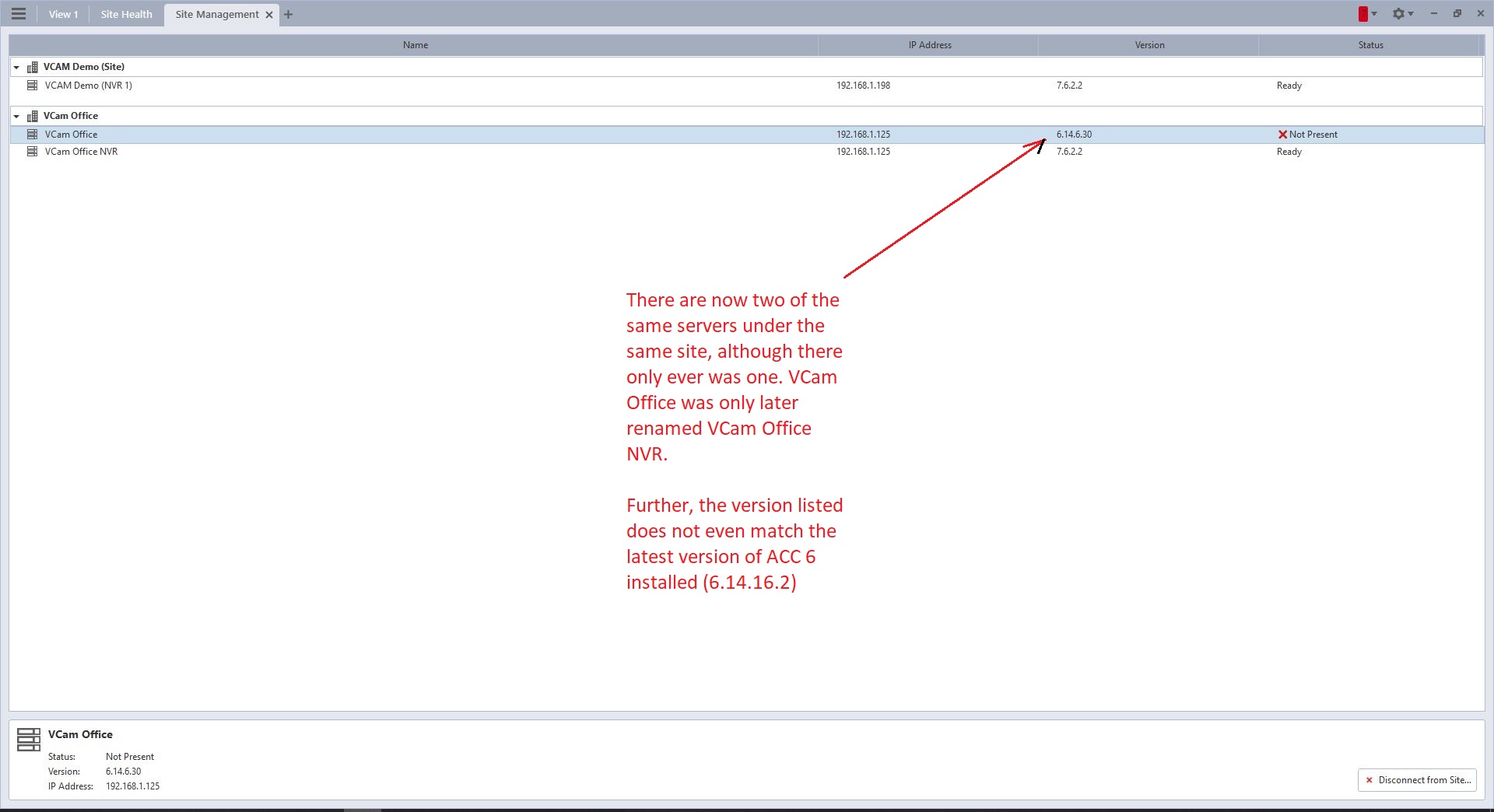
So the client “sees” two mismatched versions. Disconnecting the wrongly listed server from the site doesn’t work, because it doesn’t exist, and removing the site from the ACC Client and adding it again doesn’t help either. The workstation clients are stuck with outdated information.
Reset the ACC Client settings
Reset the ACC Client to its default settings, so it discovers the site again from scratch.
Step 1: Give Users full control of the Avigilon folder
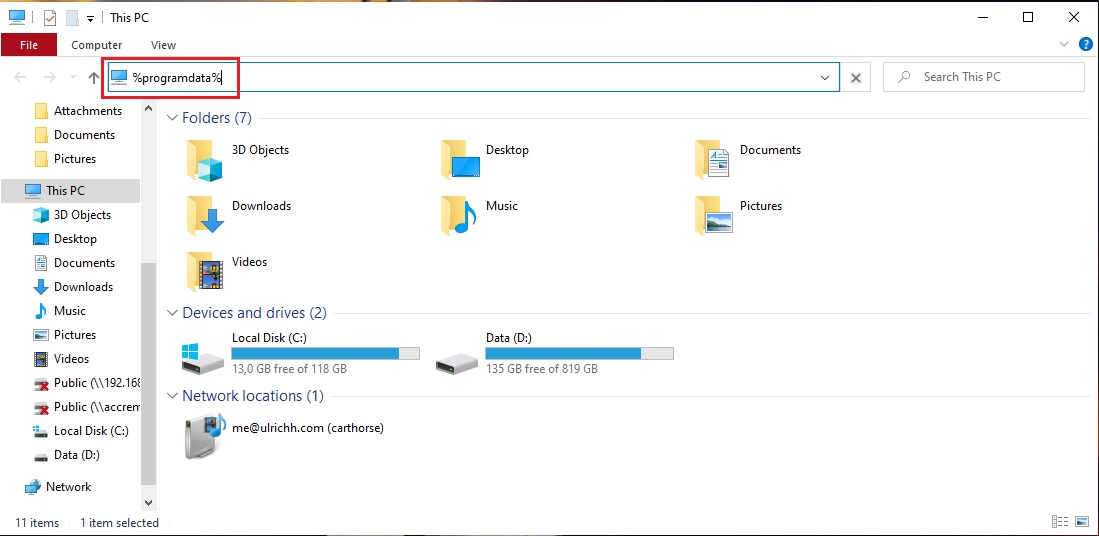
Open Run (Win + R) or File Explorer, go to %ProgramData% and press Enter. It isn’t case sensitive.
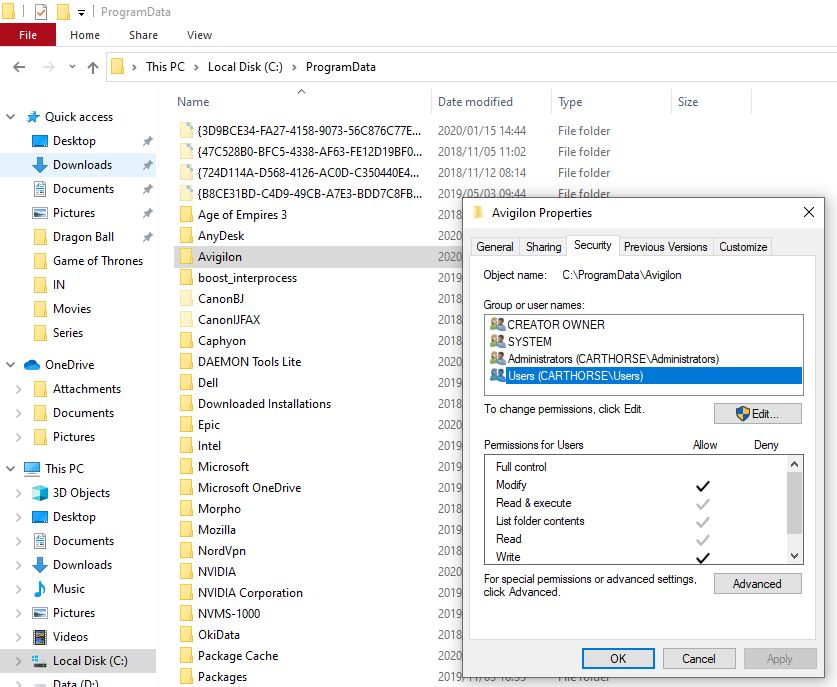
Right-click the Avigilon folder, choose Properties and open the Security tab. Make sure Users may modify the folder and everything in it. If they can’t, click Edit, tick Allow next to Full control, then click OK twice.
Step 2: Rename Client in %ProgramData%\Avigilon
Open the Avigilon folder and rename Client to Client.old.
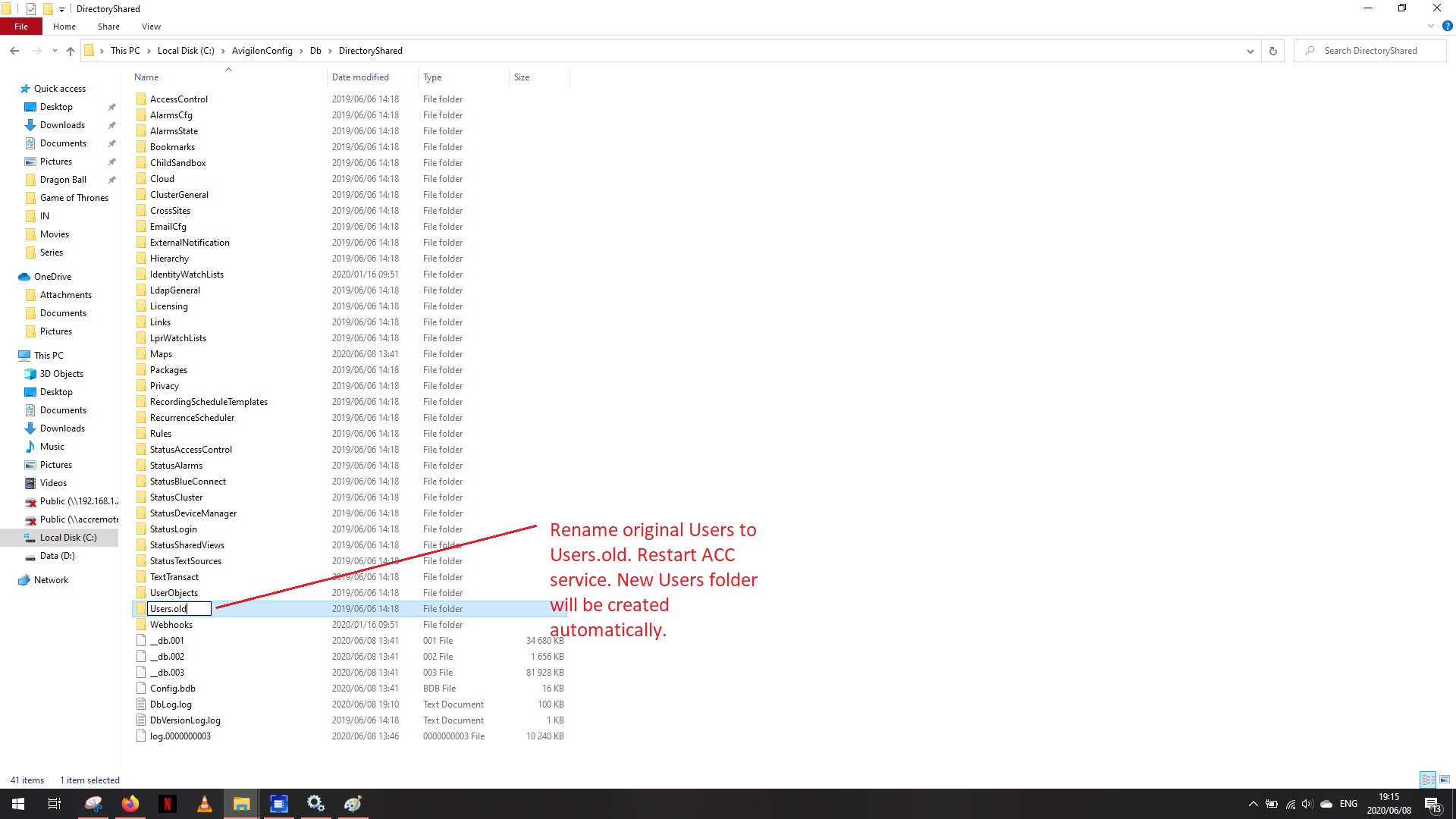
Renaming instead of deleting means you can always go back to the old settings.
Step 3: Rename Client in %AppData%\Avigilon
The next two folders shouldn’t need any permission changes. Open Run, go to %appdata%\Avigilon, and rename Client to Client.old there too.
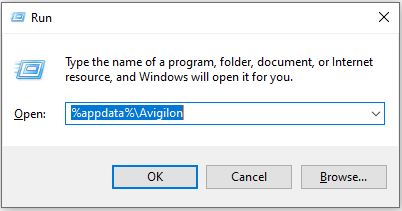
That’s the roaming folder, C:\Users\<you>\AppData\Roaming\Avigilon.
Step 4: Rename Client in %LocalAppData%\Avigilon
Go to %LocalAppData%\Avigilon and rename Client to Client.old once more.
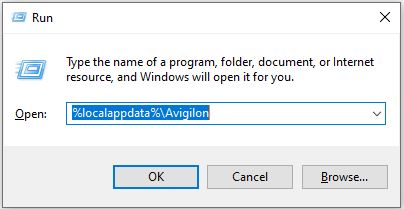
That’s the local folder, C:\Users\<you>\AppData\Local\Avigilon.
Check it worked
Open the ACC Client and go to Site Setup: the message should be gone and every option back. Site Management should show just the one server.
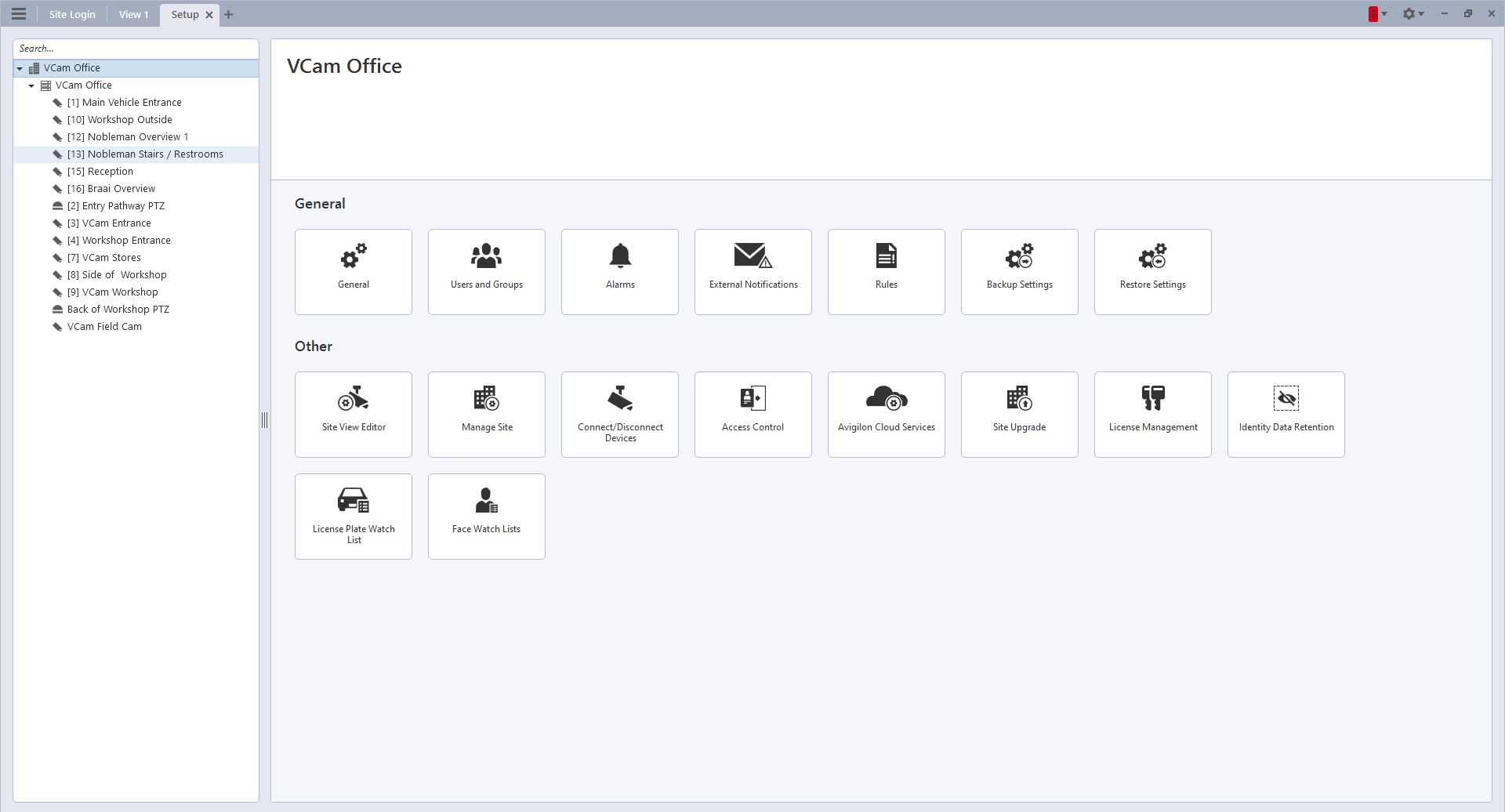
Once you’re happy, you can delete the three Client.old folders, though there’s no need.